Dates in Auto Insights
Now that you've uploaded your dataset and customized the calculations applied to each column, these additional configurations will make your dataset ready for business use.
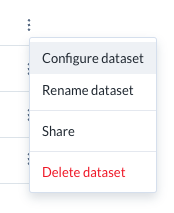
On the Datasets page, select the 3-dot menu next to your dataset, and select Configure dataset.
Select Configuration to access the Dates settings.
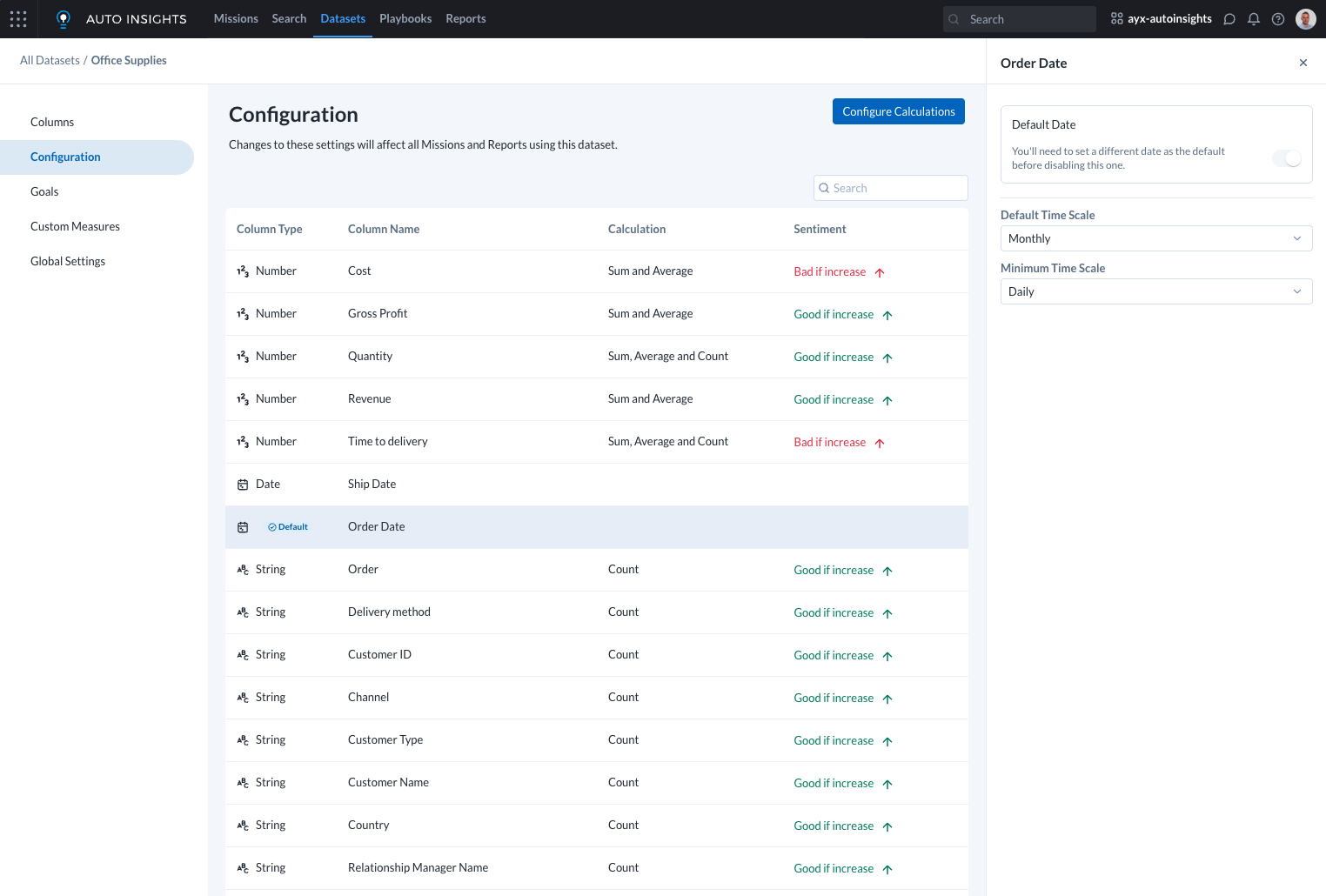
Default Date
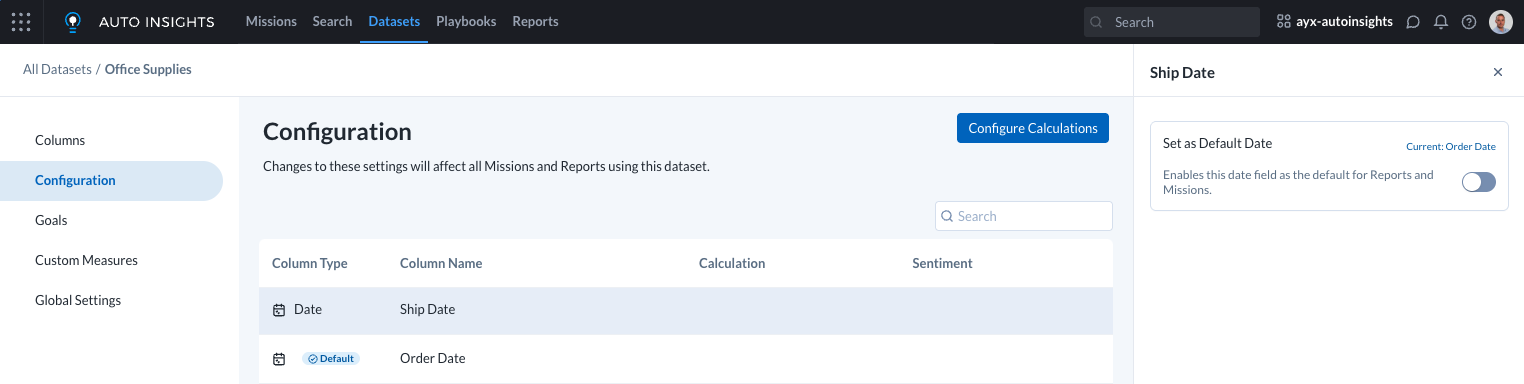
Where there are multiple date columns within your dataset, only one can be the default. The default date field will be selected for new queries in Missions, Reports, and Search.
To set a new default date field, select the desired date entry within the Configuration page and enable the Set as Default Date toggle.
Time Scale
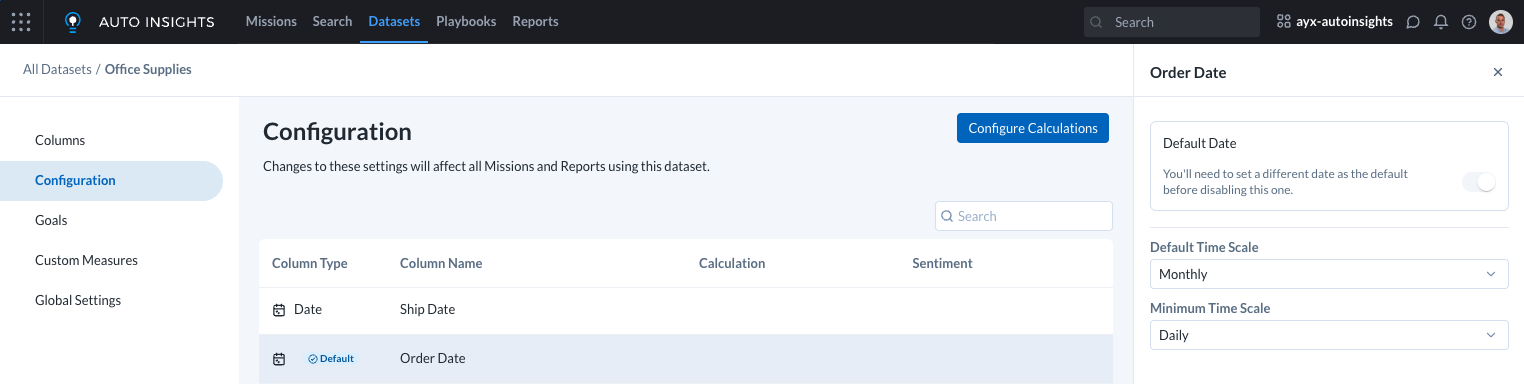
The time scale (otherwise referred to as date granularity) describes the time unit at which your data has been stored and should be analyzed, supporting Daily, Weekly, Monthly, Quarterly, and Yearly.
The Default Time Scale describes the default time unit at which your data will be displayed. When creating new queries in Missions, Reports, or Search, this time scale will be used to determine the duration of the time period used. For example, if your dataset has Weekly default time scale each new query will display change & total analytics for this week vs last week, a Monthly default time scale will result in queries having this month vs last month time periods, and so on. The default time scale cannot be smaller than the minimum time scale configured for your dataset.
The Minimum Time Scale describes the smallest time unit at which your data is stored, and has been configured based on the time scale detected when your dataset was first created. The minimum time scale governs the possible values for the default time scale – the default time scale cannot be smaller than the minimum time scale configured for your dataset. If the smallest time scale for your dataset changes after its initial creation, you can adjust the minimum time scale here.