Manage Dataset
Use the Datasets page to create, review, and configure your Auto Insights Datasets.
Create Dataset
Within the Datasets page, select Create Dataset to create a new dataset from a Alteryx One Platform Dataset. To import a dataset (CSV or by creating a connection), go to the Data tab in Alteryx One Platform
Review Datasets
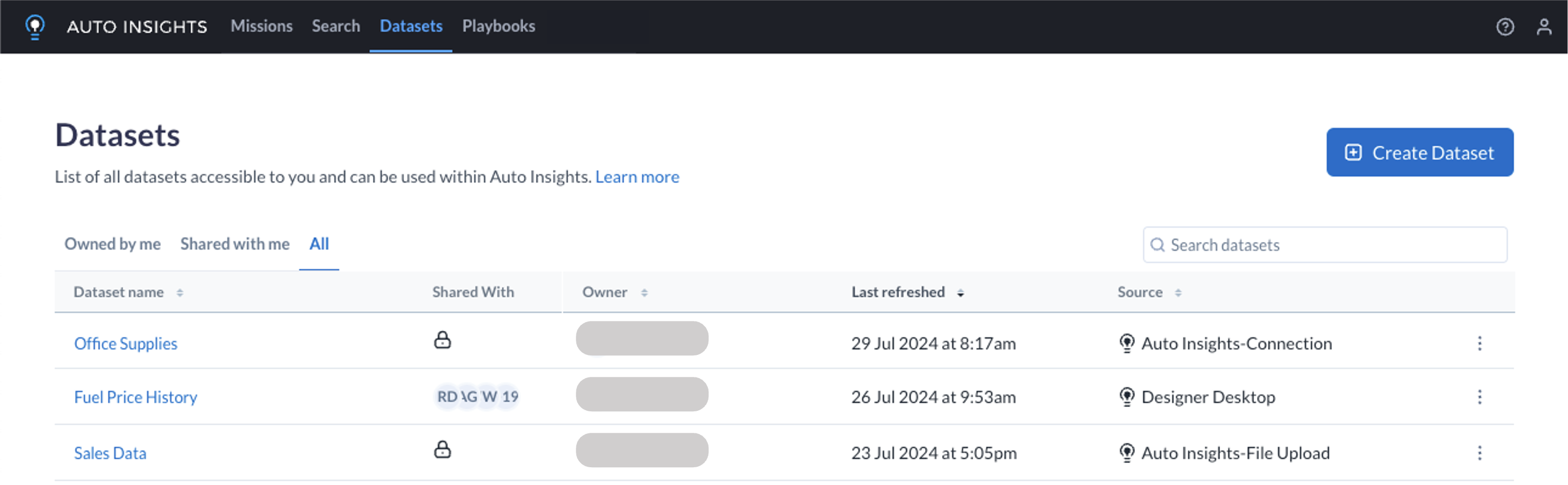
The Datasets page lists all datasets that you can access.
Name—Name of the dataset. Select the dataset name to use this dataset in a Mission. See Create Missions.
Shared with—Users that have access to this dataset.
A “padlock” icon indicates that a dataset is private and has not been shared with anyone.
An “earth” icon indicates a dataset is shared with all Auto Insights users in your workspace.
A “globe” icon indicates that this is a sample dataset provided for evaluation by Auto Insights.
Owner—Owner of the dataset.
Last refreshed—Timestamp for the last time this dataset was updated.
Source—The source of data for this dataset. Hover to see details on the data source. Datasets can have one of the following source types (which are explored further in the following section):
Alteryx One Platform is shown for Datasets imported from Alteryx One Platform.
Auto Insights is shown for Datasets imported via Admin Portal, including Playbooks synthetic datasets and Sample datasets.
Designer is shown for Datasets imported via Designer Desktop using the Auto Insights Uploader tool.
Dataset Ingestion information shown conditionally:
An Analyzing… tile will be displayed when a refresh of the dataset is in progress. Hover on the tile to see an overview of the ingestion progress.
An error icon will be displayed when the refresh was not successful. Hover on the error for more information.
Select the 3-dot menu next to your dataset to view the available options, where applicable...
Configure dataset: Review and adjust the configuration settings for this dataset.
Rename dataset: Change the name of the dataset.
Refresh dataset: Trigger an immediate refresh of this dataset, importing new data from the configured data source. This option is only available for datasets with an Alteryx One Platform source.
Users who have been granted Editor access to the Auto Insights dataset will be able to trigger Refresh, even if they haven't been granted access to the Alteryx One Platform or connection dependencies.
Replace dataset: Connect Auto Insights dataset to Alteryx One Platform by linking to an Alteryx One Platform dataset.
Schedule: Configure a refresh schedule for this dataset to periodically import new data from the configured data source. This option is only available for datasets with a Alteryx One Platform or Auto Insights-Connection source.
For datasets with Alteryx One Platform source, see Schedule Data Refresh.
For datasets with Auto Insights-Connection source, see Database Refresh Frequency.
Share: Share the dataset with other users.
For datasets with Alteryx One Platform source, see Share Dataset.
For all other datasets, see Dataset Access.
Delete dataset: Delete the dataset.
警告
Deleting a dataset removes all configuration and data stored for this dataset in Auto Insights.
Missions and Subscriptions that use this dataset will no longer be able to access it. For datasets with Alteryx One Platform source, the Alteryx One Platform dataset used by this dataset will not be deleted.
Migration of Auto Insights datasets to Alteryx One
What types of datasets need to be migrated to Alteryx One?
All Auto Insights datasets created in Admin Portal via file upload or Database Connection, synthetic datasets created via Playbooks, or datasets imported from Designer Desktop Uploader need to be migrated to Alteryx One, however the majority of these datasets have already been migrated automatically.
The following types of Auto Insights datasets require manual steps to complete the migration:
Database Connections
"Company-wide" Datasets (those that have been made available to all users in the workspace)
Manual migration steps for "company-wide" Auto Insights datasets
If you are the owner/administrator for a company-wide Auto Insights dataset, locate this dataset within the Auto Insights Datasets page.
Select the Migrate Dataset button next to the company-wide dataset. This will instantly link it to the equivalent Alteryx One asset that we have replicated to your Alteryx One workspace.
After migration, share this dataset with the appropriate Users or Group via the Share option on the Auto Insights Datasets page or Alteryx One Library.
Repeat steps 1-3 above for each company-wide dataset you wish to migrate to Alteryx One.
It is not mandatory to migrate every dataset to Alteryx One – if your company-wide dataset is no longer required, it can be deleted.
注意
Only Workspace Admins can create User Groups in the Workspace Admin Console. Learn how here.
Designer datasets: refreshing a Designer dataset by running the workflow will import the new dataset via Alteryx One into Auto Insights.
Database Connections: while the migration process connects the Auto Insights dataset to an Alteryx One dataset, we have NOT migrated the Connection used by this dataset to connect to the underlying database. Please see the steps below to create a new Connection in Alteryx One and use this in your Auto Insights dataset.
Company-Wide FAQ
- 1. What are company-wide datasets?
- 2. Where do I migrate these datasets?
- 3. What should I do before migrating?
- 4. What happens after migration?
- 5. Where will the migrated datasets appear?
- 6. Who can migrate datasets?
- 7. What if my dataset isn’t visible after migration?
1. | What are company-wide datasets? |
Company-wide datasets are shared datasets in Auto Insights that are available to all users in a workspace. | |
2. | Where do I migrate these datasets? |
You can manually migrate datasets from the Dataset tab in Auto Insights. | |
3. | What should I do before migrating? |
Make sure your workspace admin has created the correct user group in Alteryx One. Access and sharing are managed in Alteryx One after migration, so this step is required. | |
4. | What happens after migration? |
Migrated datasets appear on the Library page in Alteryx One. They also remain visible in the Dataset tab in Auto Insights. You must reshare each dataset with the appropriate users or groups in Alteryx One. Access settings from Auto Insights do not carry over automatically. | |
5. | Where will the migrated datasets appear? |
They will appear in the Library and Data page in Alteryx One and in Auto Insights. | |
6. | Who can migrate datasets? |
Only dataset admins with the correct permissions in Auto Insights can migrate datasets. | |
7. | What if my dataset isn’t visible after migration? |
If the issue continues, contact your workspace admin. |
Manual migration steps for Auto Insights Database Connections
Go to the Data page in Alteryx One.
If you don’t have one already, create a Connection to your external Data Source – for more information on creating Connections in Alteryx One, please refer to this help article.
Browse the Connection for the Table to be used for this Dataset. Select Create Dataset to create from the necessary table or Create SQL Dataset to create using a SQL query.
Once the Alteryx One dataset has been created, select Use In > Auto Insights.
Since you want to use this new data source to replace an existing dataset, select Go to replace dataset.
If you’d prefer to create a new Auto Insights dataset first to validate that it contains the same structure and data, feel free to do so via the Create new dataset button. Once you’re ready to proceed with replacing the existing dataset using the Auto Insights Connection, return to this step.
Select the existing Auto Insights Connection dataset from within the Current Dataset selection and proceed through the wizard to replace this dataset with the new source – learn how here.
It is not mandatory to migrate every dataset to Alteryx One – if your Database Connection is no longer required, it can be deleted.
注意
If the Auto Insights Connection included a refresh schedule configured in Admin Portal, this will need to be reconfigured after the migration. This is available via the Schedule option for each dataset.
All users who had existing access to these dataset(s) will retain their access after the migration; however, these users will not automatically inherit access to the new Alteryx One Dataset or Connection assets – if needed, this can be achieved by sharing the Alteryx One Dataset with these users, either individually or via a Group, and including the Connection dependency.
Types of Datasets
There are three types of datasets, as differentiated by the information shown in the Source column: Alteryx One Platform Datasets, Auto Insights datasets, and Designer Desktop datasets.
Dataset Type | Summary |
|---|---|
Alteryx One Platform dataset, including:
| Alteryx One Platform datasets...
|
Auto Insights dataset, including:
| Auto Insights datasets...
|
Designer dataset; those datasets imported via Designer Desktop using the Auto Insights Uploader tool. | Designer datasets...
|