Box
Tipo de conexión | Herramienta de Alteryx. La versión más reciente está disponible en Alteryx Marketplace. |
Tipo de soporte | Lectura y escritura |
Notas del lanzamiento de Conector 1.0.0 (Python)
Compatibilidad con Designer (por discutir)
Novedades
¡Nuevas características!
The Box connector defaults Time and DateTime precision to milliseconds to avoid extra trailing zeros, while still supporting nanosecond resolution when required by the workflow.
Cambios en el comportamiento
We've disabled the right-click context menu in Designer for the Box tools to prevent unintended actions.
Problemas corregidos
Corregido Lanzamiento de Connector, versión xxxx.x.x.xxxxx | |
|---|---|
ID | Descripción |
TPM-5038 | Newly created files in the Box tools inherit the previously selected filename when saved with any extension. |
TPM-5006 | Selecting Enable Dry Run in the Box Input tool (version 2.5.6) using a DCM connection with JWT authentication causes an error. |
TPM-4984 | The Box connector version 2.5.7 doesn’t recognize YXDB files. |
TPM-4948 | An error occurs when uploading a file using the Box tools. |
TPM-4853 | Special characters in the proxy password cause an error when setting up a manual proxy server for the Box tools. |
TPM-4782 | Secret values are exposed in the returned JSON in the Designer HTML Developer Tools for the Box tools. |
TPM-4754 | The Box Input tool returns a "list index out of range" error. |
TPM-4645 | The Box DCM connection returns an invalid access token error after 24 hours. |
TPM-4396 | The Box Input tool doesn’t function properly with DCM. |
TPM-4239 | The SharePoint Input (version 2.4.2) and Box Input (version 2.5.2) tools don’t return metadata for YXDB files that contain only a heading row. |
TPM-4192 | File name breadcrumbs don’t appear correctly in the Box UI. |
TPM-4191 | The Box Input tool version 2.5.6 on Python 3.10 adds extra decimal values to datetime fields. |
TPM-3832 | The SharePoint Input tool version 2.6.2 returns a "Python int too large to convert to C long" error. |
TPM-3334 | After upgrading to SDK version 2.4.0, null datetime values appear as NaT in CSV files using the Box tools. |
TPM-3266 | The SharePoint Input (version 2.4.2) and Box Input (version 2.5.2) tools don’t return metadata for CSV and XLSX files that contain only a heading row. |
Problemas conocidos
Conocido Lanzamiento de Connector, versión xxxx.x.x.xxxxx | |
|---|---|
ID | Descripción |
JIRA-ID | Descripción del problema |
Problemas cancelados
Cancelado Lanzamiento de Connector, versión xxxx.x.x.xxxxx | |
|---|---|
ID | Descripción |
TPM-4190 | The dry run feature doesn’t work in the Box Input tool version 2.5.6. |
TPM-4049 | The Box Output tool returns errors when writing large XLSX files. |
TPM-3758 | The Box Output tool doesn’t retain selected fields as expected. |
TPM-3634 | File paths don’t update when files are deleted from the Box server using a browser. |
TPM-3479 | In Box version 2.5.5 (Python 3.8), using the 'Download file locally for later processing' feature with an empty or invalid location doesn’t work as expected in either scenario. |
TPM-3477 | INT data types upload as FLOAT types when viewed in the Box browser. |
TPM-3435 | The Box Output tool maps incorrect data types for XLSX files. |
TPM-2871 | The Box DCM connection returns an invalid access token error after 24 hours. |
TPM-2792 | The Box Input tools return a "Communication error: Failed to write Control In message" during validation. |
TPM-2267 | The Box Output tool writes an empty YXDB file if a field is of the DateTime data type. |
TPM-2246 | The Box Output tool displays an unclear error message for invalid CSV files. |
TPM-2133 | Field names are not automatically voiced in the Box tools. |
TPM-1568 | The Box tools experience a significant lag when users click away from the tool. |
Versión | Descripción |
v2.5.6 |
|
v2.5.5 |
|
v2.5.4 |
|
v2.5.2 |
Problema conocido
Alteryx Server requiere el valor AllowAll de la configuración del modo de acceso de SDK. |
v2.5.1 |
Problema conocido
|
v2.5.0 |
Problema conocido
|
v2.4.0 |
|
v2.3.0 |
|
v2.2.0 |
|
v2.1.1 |
|
v1.0.0 |
|
Herramientas de Alteryx utilizadas para establecer conexiones

Utiliza el conector de Box para ejecutar, programar y publicar flujos de trabajo desde Designer, con los archivos almacenados en tu espacio de trabajo de Box. Los tipos de archivo admitidos son XLSX, CSV e YXDB.
Atención
La automatización del escritorio (programador) no es compatible con este conector.
Administrador de conexiones de datos (DCM)
Las herramientas Box 2.5.0 y versiones posteriores son compatibles con el Administrador de conexiones de datos para almacenar tus credenciales con más facilidad y seguridad. Crea una conexión a Box y reutiliza con facilidad las credenciales almacenadas en los flujos de trabajo en los que se incluyen las herramientas Box. Alteryx Server requiere credenciales almacenadas para ejecutar los flujos de trabajo publicados correctamente.
Habilitar AMP Engine
Asegúrate de tener AMP Engine habilitado para los flujos de trabajo que contienen las herramientas Box 2.5.0 y versiones posteriores a fin de aprovechar todo el potencial de las capacidades de Designer.
Registro a la aplicación Box
Inicia sesión en https://alteryx.app.box.com/developers/console con tus credenciales de Box.
Selecciona Crear nueva aplicación.
Selecciona Aplicación personalizada.
En Método de autenticación, selecciona Autenticación de usuario (OAuth 2.0). Ingresa el nombre de la aplicación y selecciona Crear aplicación.
En la pestaña Configuración de Ámbitos de aplicación, selecciona Escribir todos los archivos y carpetas almacenados en Box para proporcionar permiso a la aplicación.
Selecciona Guardar cambios.
Para generar un nuevo token de desarrollador, selecciona Revocar y, a continuación, Generar token de desarrollador.
Para la autenticación, puedes utilizar Id. de cliente y Secreto de cliente de Credenciales OAuth 2.0.
Configuración de una aplicación personalizada
Para evitar un problema de CORS en Box cuando se utiliza la aplicación con autenticación OAuth o Token de acceso y JWT, utiliza una configuración personalizada:
Aplicación Box con autenticación OAuth:
Agrega el URI de redirección https://cef.alteryx.com/designer/oauthcallback para resolver el problema de CORS de la ventana CEF.

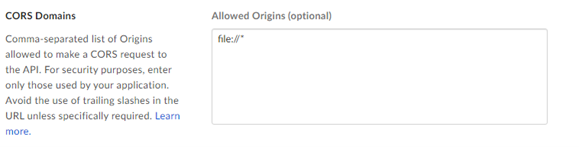
Ingresa
file://*en Orígenes permitidos.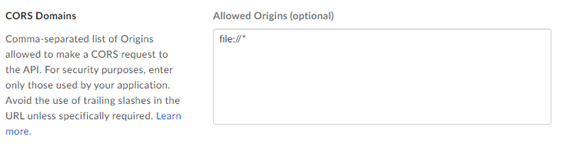
Aplicación Box con Token de acceso y autenticación JWT:
Ingresa
file://*en Orígenes permitidos.