Box
Connection Type | Alteryx Tool. The latest version is available from the Alteryx Marketplace. |
Type of Support | Read and Write |
December 8, 2025
Box Version 2.5.7
What's New
Designer displays a clear warning message when users enter an invalid sheet number, sheet name, or sheet range.
The Box connector defaults Time and DateTime precision to milliseconds to avoid extra trailing zeros, while still supporting nanosecond resolution when required by the workflow.
Changes in Behavior
We've disabled the right-click context menu in Designer for the Box tools to prevent unintended actions.
Fixed Issues
Fixed Box Version 2.5.7 | |
|---|---|
ID | Description |
TPM-5038 | Newly created files in the Box tools inherit the previously selected filename when saved with any extension. |
TPM-5006 | Selecting Enable Dry Run in the Box Input tool (version 2.5.6) using a DCM connection with JWT authentication causes an error. |
TPM-4984 | The Box connector version 2.5.7 doesn’t recognize YXDB files. |
TPM-4948 | An error occurs when uploading a file using the Box tools. |
TPM-4853 | Special characters in the proxy password cause an error when setting up a manual proxy server for the Box tools. |
TPM-4782 | Secret values are exposed in the returned JSON in the Designer HTML Developer Tools for the Box tools. |
TPM-4754 | The Box Input tool returns a "list index out of range" error. |
TPM-4645 | The Box DCM connection returns an invalid access token error after 24 hours. |
TPM-4396 | The Box Input tool doesn’t function properly with DCM. |
TPM-4239 | The SharePoint Input (version 2.4.2) and Box Input (version 2.5.2) tools don’t return metadata for YXDB files that contain only a heading row. |
TPM-4192 | File name breadcrumbs don’t appear correctly in the Box UI. |
TPM-4191 | The Box Input tool version 2.5.6 on Python 3.10 adds extra decimal values to datetime fields. |
TPM-3832 | The SharePoint Input tool version 2.6.2 returns a "Python int too large to convert to C long" error. |
TPM-3334 | After upgrading to SDK version 2.4.0, null datetime values appear as NaT in CSV files using the Box tools. |
TPM-3266 | The SharePoint Input (version 2.4.2) and Box Input (version 2.5.2) tools don’t return metadata for CSV and XLSX files that contain only a heading row. |
Known Issues
Known Box Version 2.5.7 | |
|---|---|
ID | Description |
TPM-2621 | The Box connector fails to read files larger than 1.9 GB. |
Cancelled Issues
Cancelled Box Version 2.5.7 | |
|---|---|
ID | Description |
TPM-4190 | The dry run feature doesn’t work in the Box Input tool version 2.5.6. |
TPM-4049 | The Box Output tool returns errors when writing large XLSX files. |
TPM-3758 | The Box Output tool doesn’t retain selected fields as expected. |
TPM-3634 | File paths don’t update when files are deleted from the Box server using a browser. |
TPM-3479 | In Box version 2.5.5 (Python 3.8), using the 'Download file locally for later processing' feature with an empty or invalid location doesn’t work as expected in either scenario. |
TPM-3477 | INT data types upload as FLOAT types when viewed in the Box browser. |
TPM-3435 | The Box Output tool maps incorrect data types for XLSX files. |
TPM-2871 | The Box DCM connection returns an invalid access token error after 24 hours. |
TPM-2792 | The Box Input tools return a "Communication error: Failed to write Control In message" during validation. |
TPM-2267 | The Box Output tool writes an empty YXDB file if a field is of the DateTime data type. |
TPM-2246 | The Box Output tool displays an unclear error message for invalid CSV files. |
TPM-2133 | Field names are not automatically voiced in the Box tools. |
TPM-1568 | The Box tools experience a significant lag when users click away from the tool. |
Version | Description |
v2.5.6 |
|
v2.5.5 |
|
v2.5.4 |
|
v2.5.2 |
Known Issue
Alteryx Server requires the AllowAll value of the SDK Access Mode settings. |
v2.5.1 |
Known Issue
|
v2.5.0 |
Known Issue
|
v2.4.0 |
|
v2.3.0 |
|
v2.2.0 |
|
v2.1.1 |
|
v1.0.0 |
|
Alteryx Tools Used to Connect

Use the Box connector to run, schedule, and publish workflows from Designer, using files stored in your Box workspace. Supported file types are XLSX, CSV and YXDB.
Caution
Desktop Automation (Scheduler) is not supported by this connector.
Data Connection Manager
The Box tools version 2.5.0 and later support Data Connection Manager for an easier and a safer storage of your credentials. Create a connection to Box and easily reuse the stored credentials in workflows that include the Box tools. Alteryx Server requires stored credentials to successfully run the published workflows.
Enable AMP Engine
Make sure you have the AMP engine enabled for the workflows which contain the Box tools version 2.5.0 and later to leverage the full potential of Designer capabilities.
Box App Registration
Log in to https://alteryx.app.box.com/developers/console using your Box credentials.
Select Create New App.
Select Custom App.
In Authentication Method, select User Authentication (OAuth 2.0). Enter App Name and select Create App.
On the Configuration tab in Application Scopes, select Write all file and folders stored in Box to provide permission to the app.
Select Save Changes.
To generate a new developer token, select Revoke and then select Generate Developer Token.
You can use Client ID and Client Secret from OAuth 2.0 Credentials for authentication.
Custom Application Setup
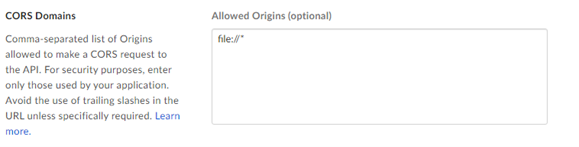
To avoid a Box CORS issue when using the app with OAuth authentication or Access Token and JWT, use a custom configuration:
Box app with OAuth authentication:
Add Redirect URI https://cef.alteryx.com/designer/oauthcallback to resolve the CEF window CORS issue.

Enter
file://*for Allowed Origins.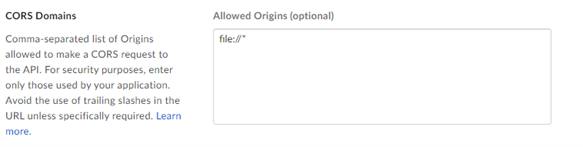
Box app with Access Token and JWT authentication:
Enter
file://*for Allowed Origins.