Box
Type de connexion | Outil Alteryx. La version la plus récente est disponible dans Alteryx Marketplace. |
Type de prise en charge | Lecture et écriture |
Notes de mise à jour du Connecteur 1.0.0 (Python)
Compatibilité avec Designer (à discuter)
Nouveautés
De toutes nouvelles fonctionnalités !
The Box connector defaults Time and DateTime precision to milliseconds to avoid extra trailing zeros, while still supporting nanosecond resolution when required by the workflow.
Changements de comportement
We've disabled the right-click context menu in Designer for the Box tools to prevent unintended actions.
Problèmes résolus
Corrigé Version majeure xxxx.x.x.xxxxx du COnnecteur | |
|---|---|
ID | Description |
TPM-5038 | Newly created files in the Box tools inherit the previously selected filename when saved with any extension. |
TPM-5006 | Selecting Enable Dry Run in the Box Input tool (version 2.5.6) using a DCM connection with JWT authentication causes an error. |
TPM-4984 | The Box connector version 2.5.7 doesn’t recognize YXDB files. |
TPM-4948 | An error occurs when uploading a file using the Box tools. |
TPM-4853 | Special characters in the proxy password cause an error when setting up a manual proxy server for the Box tools. |
TPM-4782 | Secret values are exposed in the returned JSON in the Designer HTML Developer Tools for the Box tools. |
TPM-4754 | The Box Input tool returns a "list index out of range" error. |
TPM-4645 | The Box DCM connection returns an invalid access token error after 24 hours. |
TPM-4396 | The Box Input tool doesn’t function properly with DCM. |
TPM-4239 | The SharePoint Input (version 2.4.2) and Box Input (version 2.5.2) tools don’t return metadata for YXDB files that contain only a heading row. |
TPM-4192 | File name breadcrumbs don’t appear correctly in the Box UI. |
TPM-4191 | The Box Input tool version 2.5.6 on Python 3.10 adds extra decimal values to datetime fields. |
TPM-3832 | The SharePoint Input tool version 2.6.2 returns a "Python int too large to convert to C long" error. |
TPM-3334 | After upgrading to SDK version 2.4.0, null datetime values appear as NaT in CSV files using the Box tools. |
TPM-3266 | The SharePoint Input (version 2.4.2) and Box Input (version 2.5.2) tools don’t return metadata for CSV and XLSX files that contain only a heading row. |
Problèmes connus
Connu Version majeure xxxx.x.x.xxxxx du COnnecteur | |
|---|---|
ID | Description |
ID JIRA | Description du problème |
Problèmes annulés
Annulé Version majeure xxxx.x.x.xxxxx du COnnecteur | |
|---|---|
ID | Description |
TPM-4190 | The dry run feature doesn’t work in the Box Input tool version 2.5.6. |
TPM-4049 | The Box Output tool returns errors when writing large XLSX files. |
TPM-3758 | The Box Output tool doesn’t retain selected fields as expected. |
TPM-3634 | File paths don’t update when files are deleted from the Box server using a browser. |
TPM-3479 | In Box version 2.5.5 (Python 3.8), using the 'Download file locally for later processing' feature with an empty or invalid location doesn’t work as expected in either scenario. |
TPM-3477 | INT data types upload as FLOAT types when viewed in the Box browser. |
TPM-3435 | The Box Output tool maps incorrect data types for XLSX files. |
TPM-2871 | The Box DCM connection returns an invalid access token error after 24 hours. |
TPM-2792 | The Box Input tools return a "Communication error: Failed to write Control In message" during validation. |
TPM-2267 | The Box Output tool writes an empty YXDB file if a field is of the DateTime data type. |
TPM-2246 | The Box Output tool displays an unclear error message for invalid CSV files. |
TPM-2133 | Field names are not automatically voiced in the Box tools. |
TPM-1568 | The Box tools experience a significant lag when users click away from the tool. |
Version | Description |
v2.5.6 |
|
v2.5.5 |
|
v2.5.4 |
|
v2.5.2 |
Problèmes connus
Alteryx Server requiert la valeur AllowAll des paramètres du mode d'accès au SDK. |
v2.5.1 |
Problèmes connus
|
v2.5.0 |
Problèmes connus
|
v2.4.0 |
|
v2.3.0 |
|
v2.2.0 |
|
v2.1.1 |
|
v1.0.0 |
|
Outils Alteryx utilisés pour la connexion

Utilisez le connecteur Box pour exécuter, planifier et publier des workflows à partir de Designer, à l'aide de fichiers stockés dans votre espace de travail Box. Les types de fichiers pris en charge sont XLSX, CSV et YXDB.
Attention
L'automatisation de bureau (Planificateur) n'est pas prise en charge par ce connecteur.
Gestionnaire de connexions aux données
Les outils Box version 2.5.0 et ultérieure prennent en charge le Gestionnaire de connexions aux données pour un stockage plus simple et plus sûr de vos informations d'identification. Créez une connexion à Box et réutilisez facilement les informations d'identification stockées dans les workflows incluant les outils Box. Alteryx Server nécessite des informations d'identification stockées pour exécuter correctement les workflows publiés.
Activation d'AMP Engine
Assurez-vous que l'outil AMP Engine est activé pour les workflows contenant les outils Box version 2.5.0 et ultérieure afin de tirer pleinement parti des fonctionnalités de Designer.
Inscription de l'application Box
Connectez-vous à https://alteryx.app.box.com/developers/console à l'aide de vos informations d'identification Box.
Sélectionnez Créer une nouvelle application.
Sélectionnez Application personnalisée.
Dans Méthode d'authentification, sélectionnez Authentification utilisateur (OAuth 2.0). Saisissez le Nom de l'application et sélectionnez Créer une application.
Dans l'onglet Configuration de la section Étendue de l'application, sélectionnez Écrire tous les dossiers et fichiers stockés dans Box pour donner l'autorisation à l'application.
Sélectionnez Enregistrer les modifications.
Pour générer un nouveau jeton de développeur, sélectionnez Révoquer, puis Générer un jeton de développeur.
Vous pouvez utiliser l'ID client et le secret client issus des Informations d'identification OAuth 2.0 pour l'authentification.
Configuration d'application personnalisée
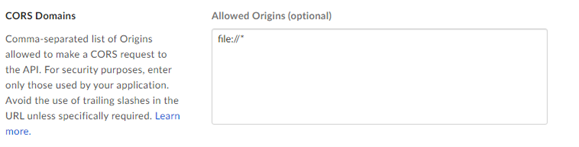
Pour éviter un problème CORS de Box lors de l'utilisation de l'application avec l'authentification OAuth ou le jeton d'accès et JWT, utilisez une configuration personnalisée :
Application Box avec authentification OAuth :
Ajoutez URL de redirection https://cef.alteryx.com/designer/oauthcallback pour résoudre le problème CORS de la fenêtre CEF.

Saisissez
file://*pour Origines autorisées.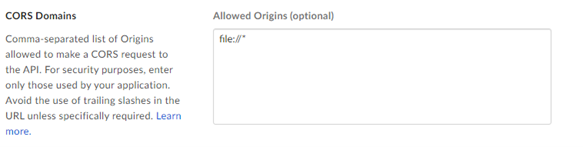
Application Box avec jeton d'accès et authentification JWT :
Saisissez
file://*pour Origines autorisées.